Edit your website with a conversation
No coding and no designers. Tell the AI what you want changed, click any text or photo in a private preview, and take it live with one button. Nothing reaches visitors until you say so.
Three ways to change your site
The editor shows a private preview of your website. You change it with whichever of these fits the moment, and every change lands in the preview first.
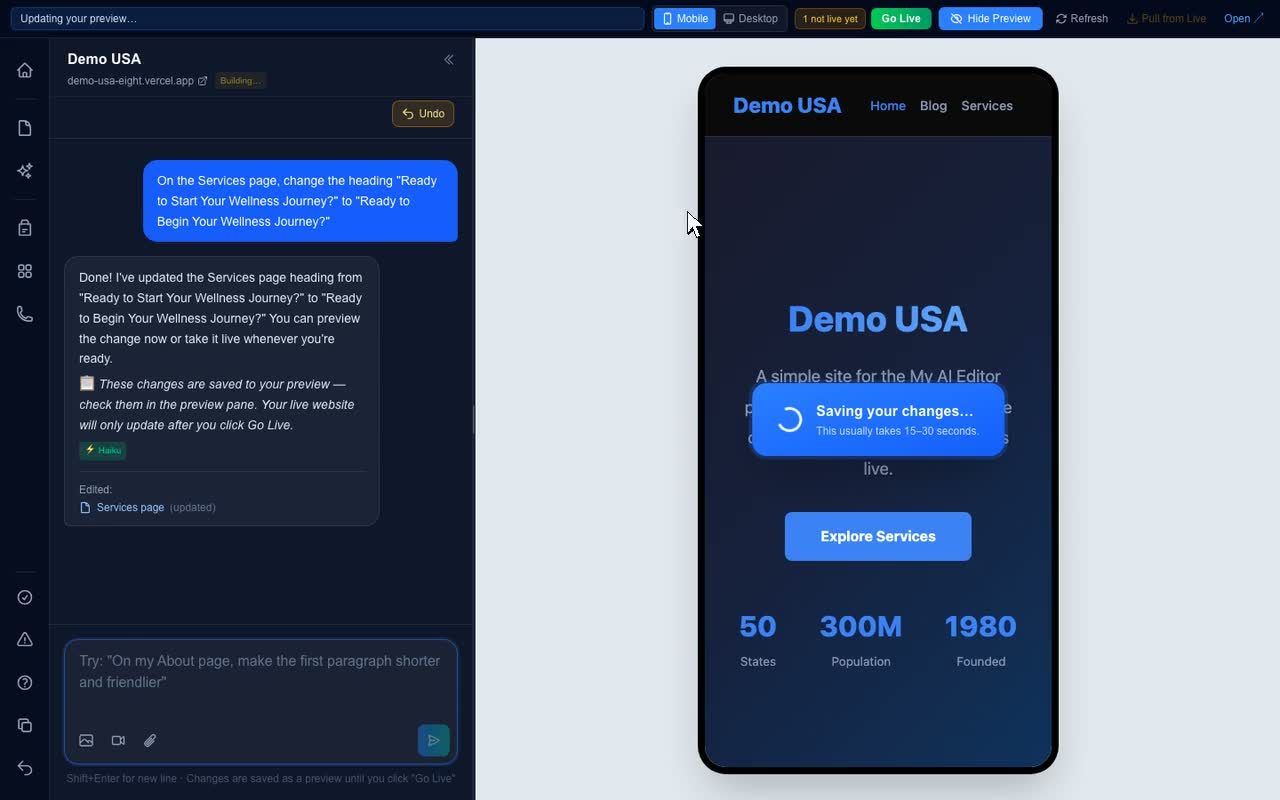
Chat with the editor
Say what you want in plain English. Name the page, describe the result, and the AI makes the change in your preview and tells you what it did. Use it for anything that spans pages, adds sections, or writes new content.
When to use chat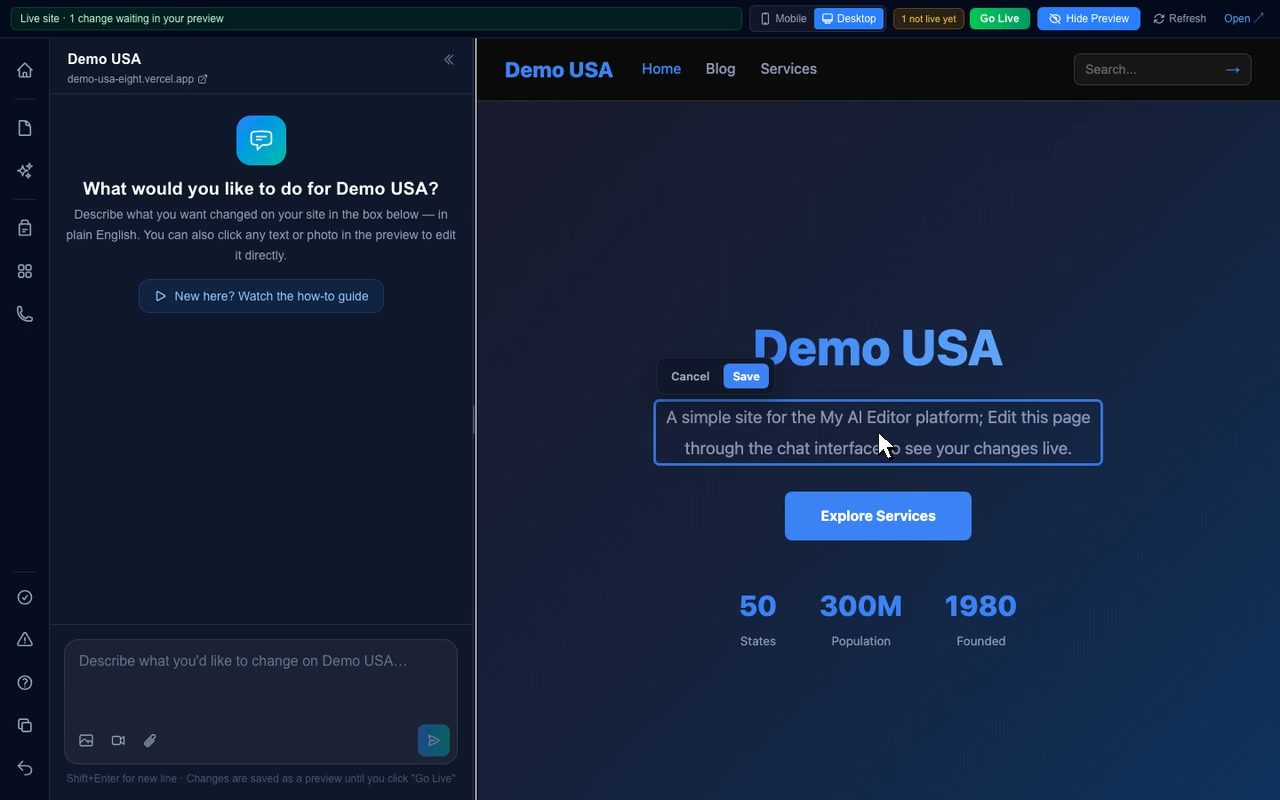
Click any text and type
Headings, paragraphs, and list items light up with a blue outline when you hover in the preview. Click, type, click away. It saves to the preview by itself. Fastest for typos, wording, and prices.
When to click instead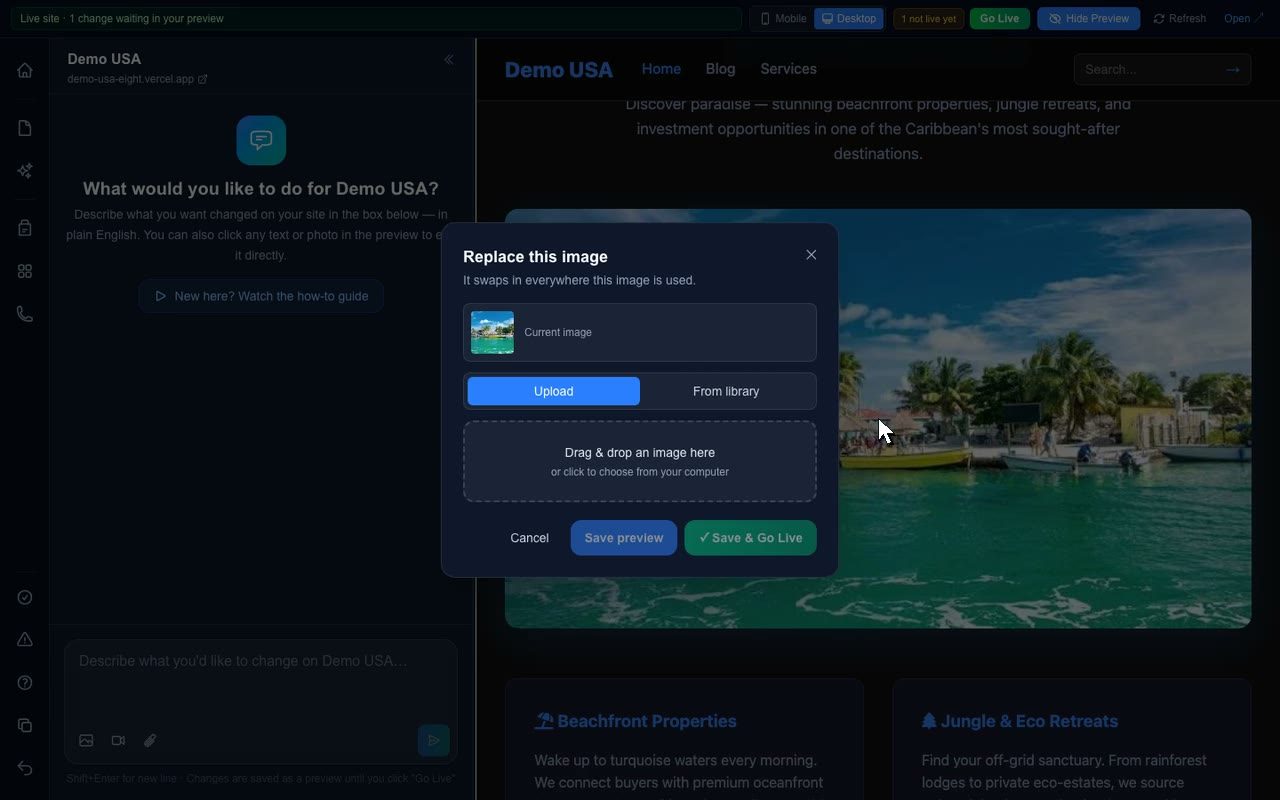
Click any photo to replace it
Hover a picture, click, and the Replace this image dialog opens. Upload a new one or pick from your Media library. The layout stays exactly the same, only the photo changes.
When to use the photo editorWatch a request travel from chat to preview to live
A scripted miniature of the editor. Tap a request, watch the preview change, then press Go Live. Nothing here touches a real site.
Your Business Name
A website you can change by chatting, by clicking, or by swapping a photo. Nothing goes live until you say so.
Explore services
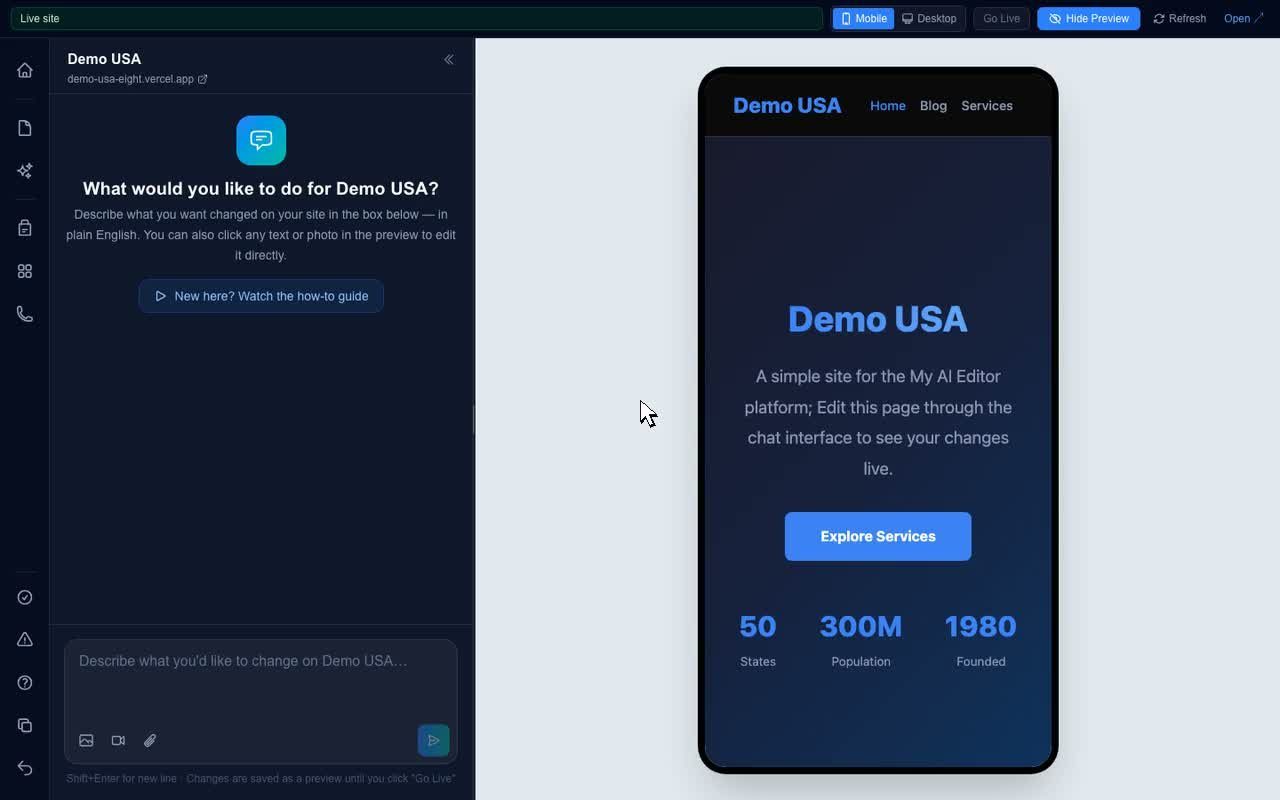
The real editor works the same way. Chat edits, click edits, and photo swaps all land in a private preview. The amber "not live yet" counter tells you what is waiting, and Go Live publishes all of it at once.
Preview first. Live when you say so.
Every change, from every tool, follows the same three stops. That is why you can experiment freely.
You make a change
Chat, click, or replace a photo. The editor commits it to your private preview copy of the site within seconds.
The preview shows it
An amber counter next to Go Live reads "not live yet" with the number of pages waiting. Hover it to see which ones. Undo is one click away.
You press Go Live
Everything in the preview publishes together, and that publish is saved in Version history so any earlier version can be brought back.
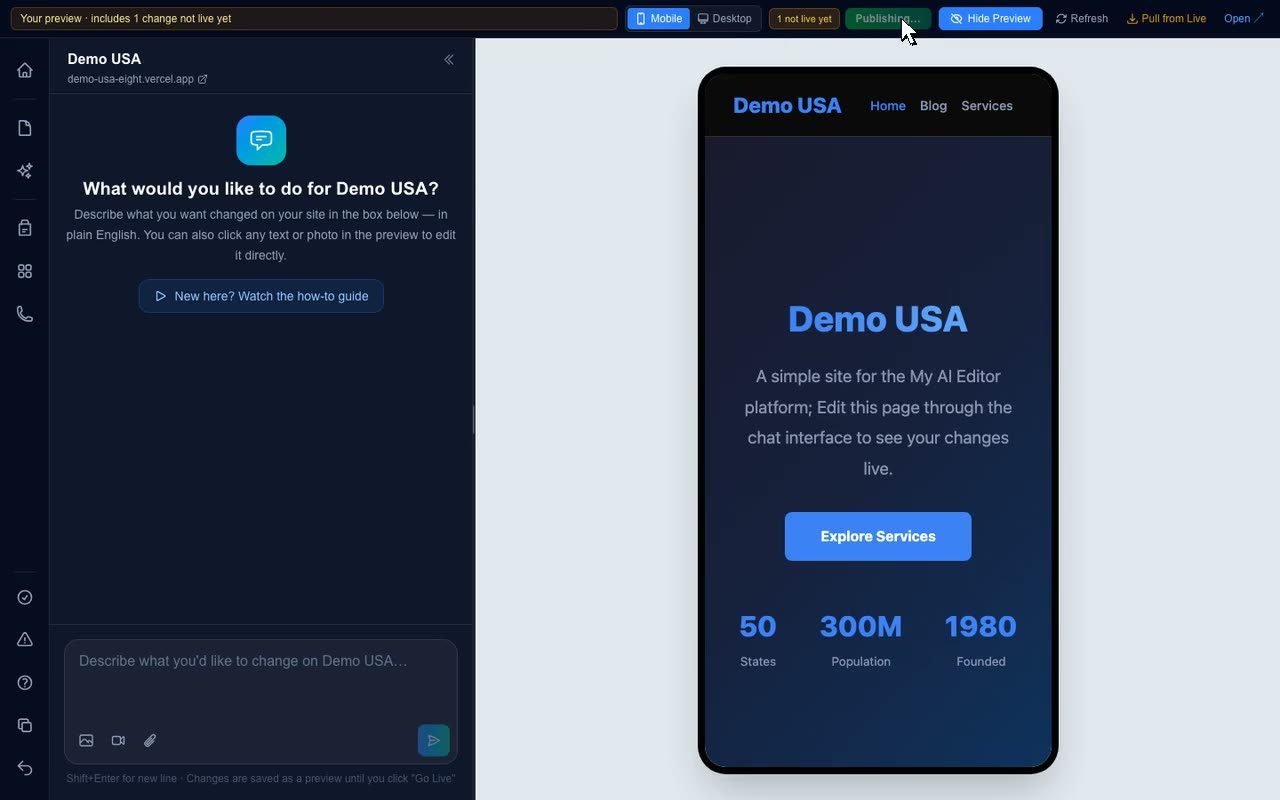
What the counter is telling you
- Live site in the top bar means the preview and the live website match. Nothing is waiting.
- Your preview, N changes not live yet means work is saved but unpublished. Close the tab and come back tomorrow, it is still there.
- Updating your preview shows for about a minute after a save while the preview rebuilds. Press Refresh if a page looks older than your edit.
- Go Live is gray when there is nothing to publish. That is not a bug, it means you are already live.
What you can change, and how
The short version. The full rulebook, with the reasons, is on the How it works page.
Click to edit directly
Anything with a blue outline on hover.
- Headlines, paragraphs, list items, card text
- Any photo on a page, by clicking it
- Blog post text and blog card titles
Ask the chat instead
Shared parts and anything structural.
- Menu links, footer, hours, phone numbers
- Buttons, forms, colors, layout, new sections
- New pages, blog posts, SEO titles, videos and PDFs
Protected on purpose
The editor will not touch these by clicking.
- Text inside menus, footers, buttons, and forms
- Logos in the header and footer
- The security headers that let the editor preview your site
Watch the editor work
Short looping clips recorded in the live editor. Ten more are on the How it works page and in the help center.
Start here: the editor in 90 seconds
Chat on the left, preview on the right, Go Live at the top. The whole mental model in one loop.
Editing text by clicking
Hover, click, type, Save. A paragraph gets rewritten in place.
Replacing a photo
Click the hero picture, choose a new file, press Save preview. Same frame, new photo.
The editor is one piece of a bigger kit
Web Education Services pairs websites with the marketing tools, free Friday workshops, and classes that keep them working.
My AI Editor
Chat with an AI agent that edits, manages, and improves your website. Click to edit text, click to replace photos, and press Go Live when you are ready.
Learn more
AI Website Design
Custom small-business websites designed, built, and launched fast, with My AI Editor included so updates never wait on a developer again.
Learn more
Social Media Builder
A week of posts, written and designed, with custom AI images featuring the people you choose.
Learn more
Friday Workshops and Replays
Hands-on AI workshops for small business owners, live every Friday in Tampa Bay and online, with every past session recorded for replay.
Learn moreBuilt by Web Education Services
Web Education Services is a small-business education company in New Port Richey, Florida. For more than ten years it has launched and managed websites, taught marketing in free Friday workshops, and built the tools that make the process easier to keep up with.
My AI Editor is not a third-party product that gets resold. It is the company's own platform, built from the friction of hundreds of update requests that used to wait on a developer.





The editor can build small tools, not just edit words
This working budget calculator is the kind of thing the chat adds to a page in a single request. Ask for something interactive and watch it appear in your preview.
- "Add a monthly budget calculator to the Home page with an encouraging message"
- Calculators, FAQs, pricing tables, testimonial rows, and booking buttons all work the same way
- Forms and buttons are chat territory. Click-to-edit skips them on purpose so a click never breaks a form.
Monthly budget check
A friendly calculator the chat built in one request. Enter a few numbers and press Calculate.
Ready to change something?
Sign in, pick your website, and try the five moves in the quick guide. The preview is your sandbox.