How My AI Editor works
What every part of the screen does, when to chat and when to click, what you can change and what is protected, and a ten-minute tour you can follow word for word.
The three things on screen
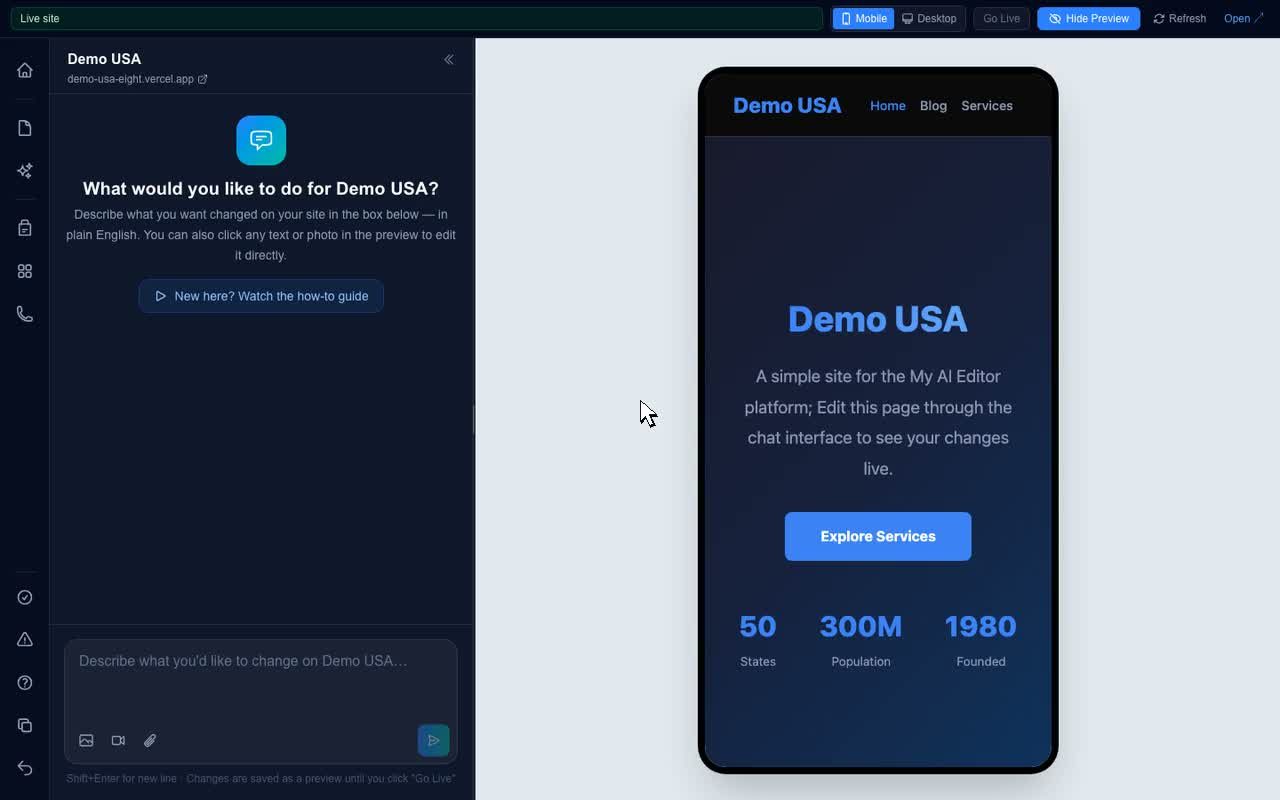
Chat on the left, your private preview on the right, and one green button at the top. Everything else is a shortcut to one of those three.
 512346
- Chat. Describe a change in plain English. The AI edits your preview and tells you which page it changed at the top of every reply.
- Preview. A private copy of your site. Click any text to edit it in place. Click any photo to replace it. Real visitors never see this copy.
- Go Live. Publishes the whole preview to the real website. The amber counter beside it says how many pages are waiting.
- Mobile and Desktop. Switch the preview to phone width. Most visitors are on phones, so check here before publishing.
- Left toolbar. Pages, Media library, Update contact info, SEO Audit, AI blog writer, Version history, Help, and Report a bug. Each one is explained below.
- Refresh and Open. Refresh redraws the preview after a save. Open shows the preview in its own browser tab.
The chatbot: for anything you would describe
The chat is the most capable tool. It can rewrite, restructure, add sections, build pages, write posts, fix layouts, and update something on every page at once. Use it whenever the change is bigger than a sentence, touches a shared part of the site, or needs something new to exist.
How to word a request so it lands the first time
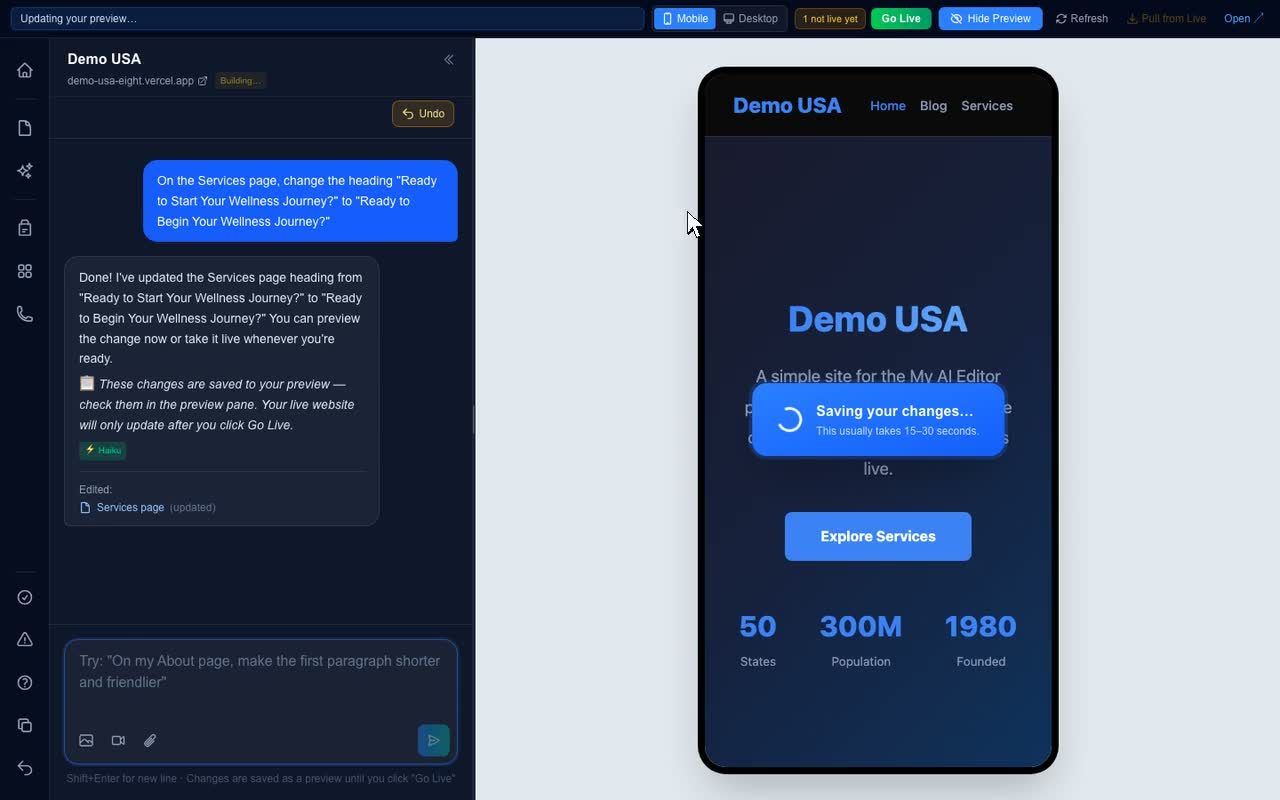
- Name the page. "On the Home page, ..." beats "make the headline shorter". The named page wins even if the preview shows a different one.
- Describe the result, not the method. "Friendlier and half as long" is perfect. No technical words needed.
- One change at a time. Short requests are faster and easier to check in the preview.
- Answer its questions. The AI asks when a request could land in two places. That is the moment a wrong guess would cost time.
- Watch the Tip line. Replies end with one coaching tip about the thing that would have made the request easier.
Click to edit: for the words already on the page
Hover over text in the preview and editable text shows a soft blue outline. Click it and type, just like a document. Click anywhere else, or on the next paragraph, and the edit saves to the preview by itself. It is the fastest way to fix a typo, change a price, or reword a sentence.
- Headings, paragraphs, list items, and the text inside cards all work.
- The small toolbar has Save and Cancel. Esc also cancels before a save.
- Moving to another page mid-edit is fine. The editor saves the open edit first.
- Menus, footers, buttons, and forms are protected. They repeat on every page or do something when clicked, so the editor skips them. Ask the chat for those.
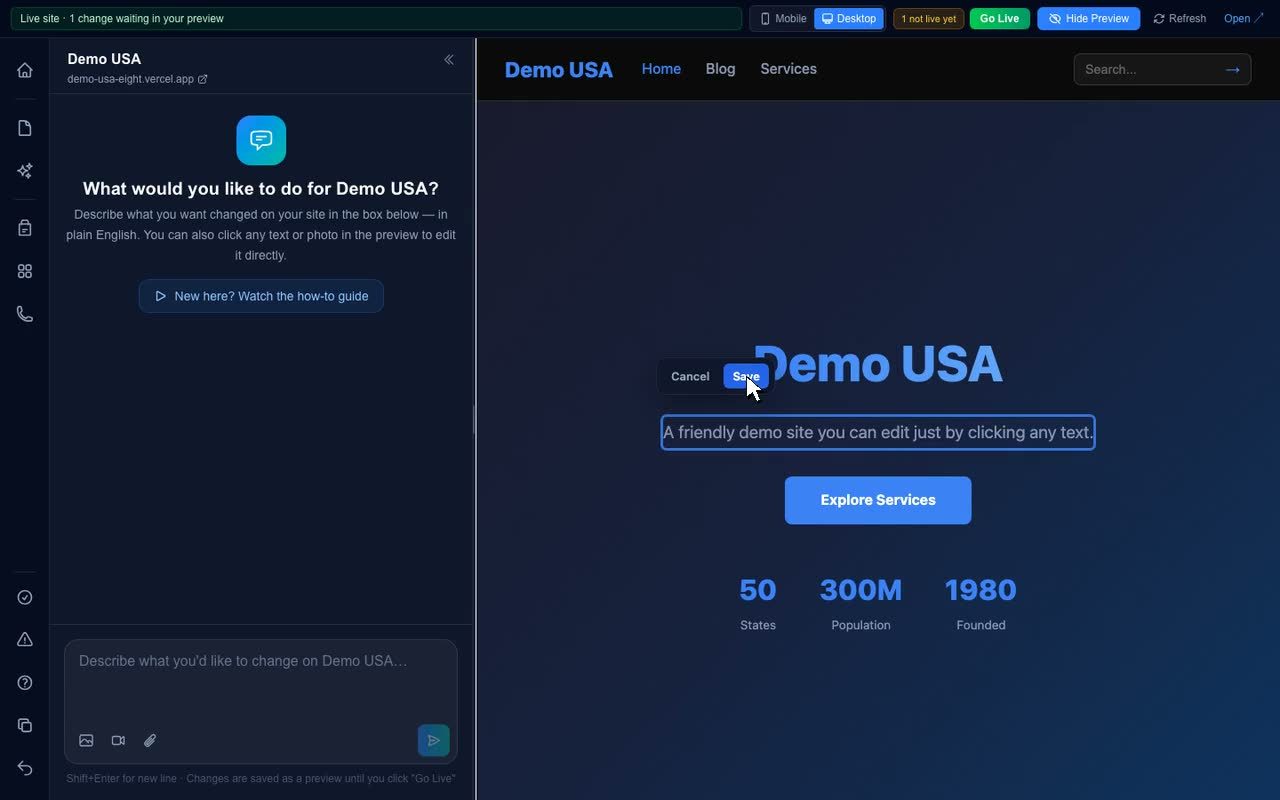
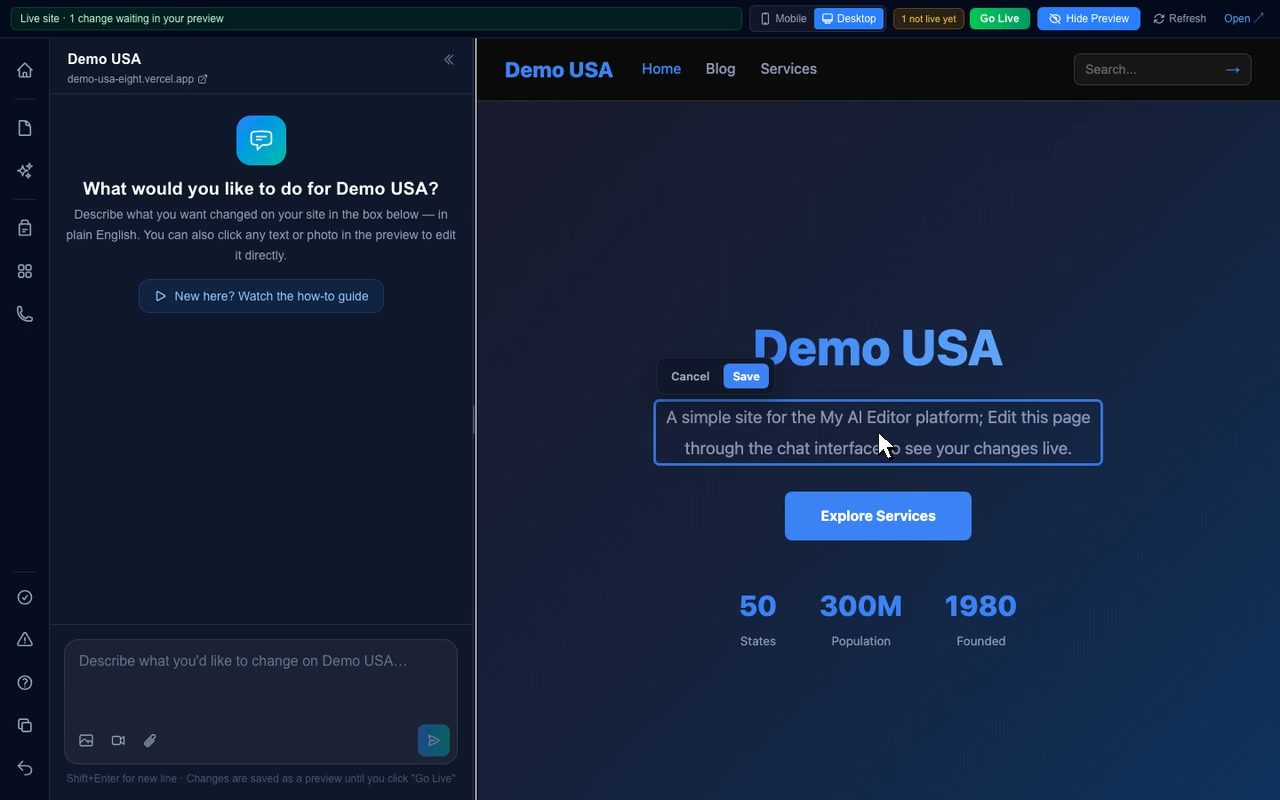
If it outlines, you can click it. If it does not, it belongs to the chat.
The photo editor: click any picture to replace it
Use it whenever the picture is wrong and the layout is right. The frame, size, and position stay exactly the same. Only the photo changes.
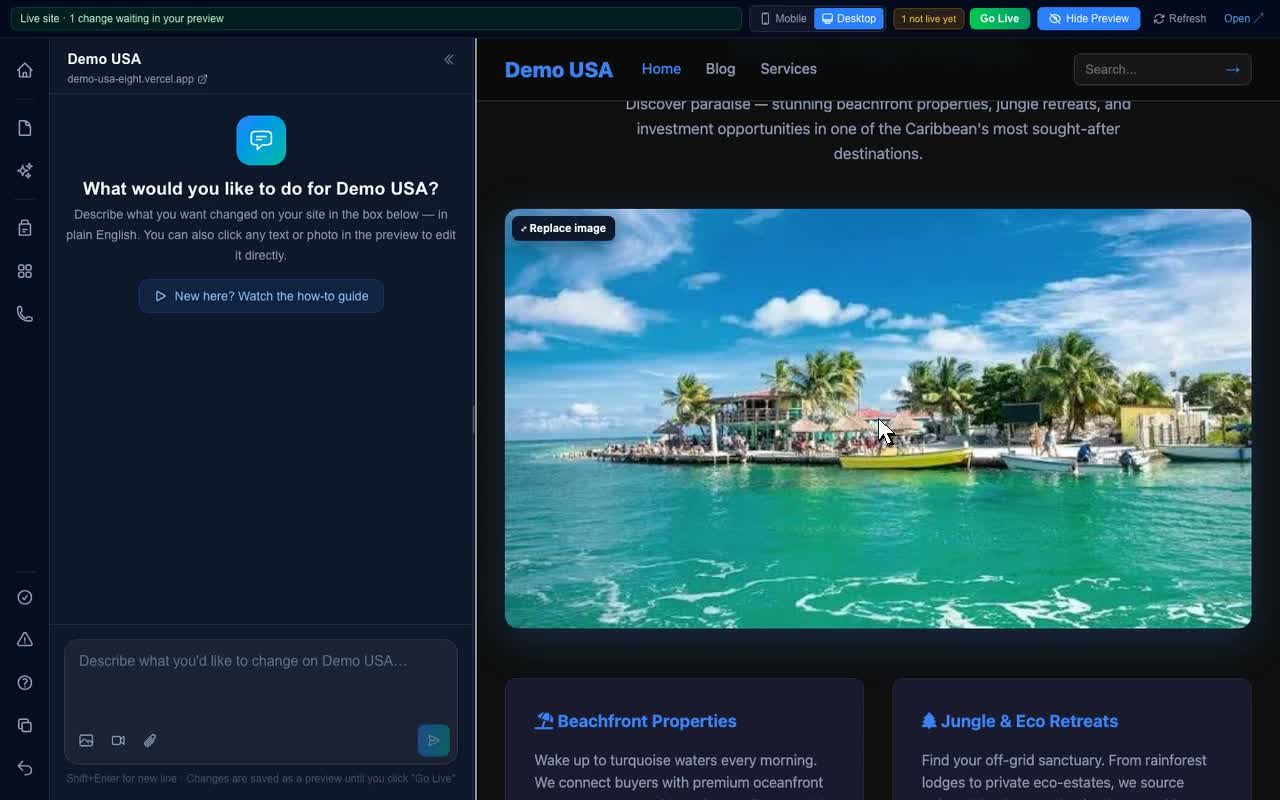
Hover, then click the photo
A "Replace image" label appears over any picture that can be swapped. Logos in the menu and footer are protected.
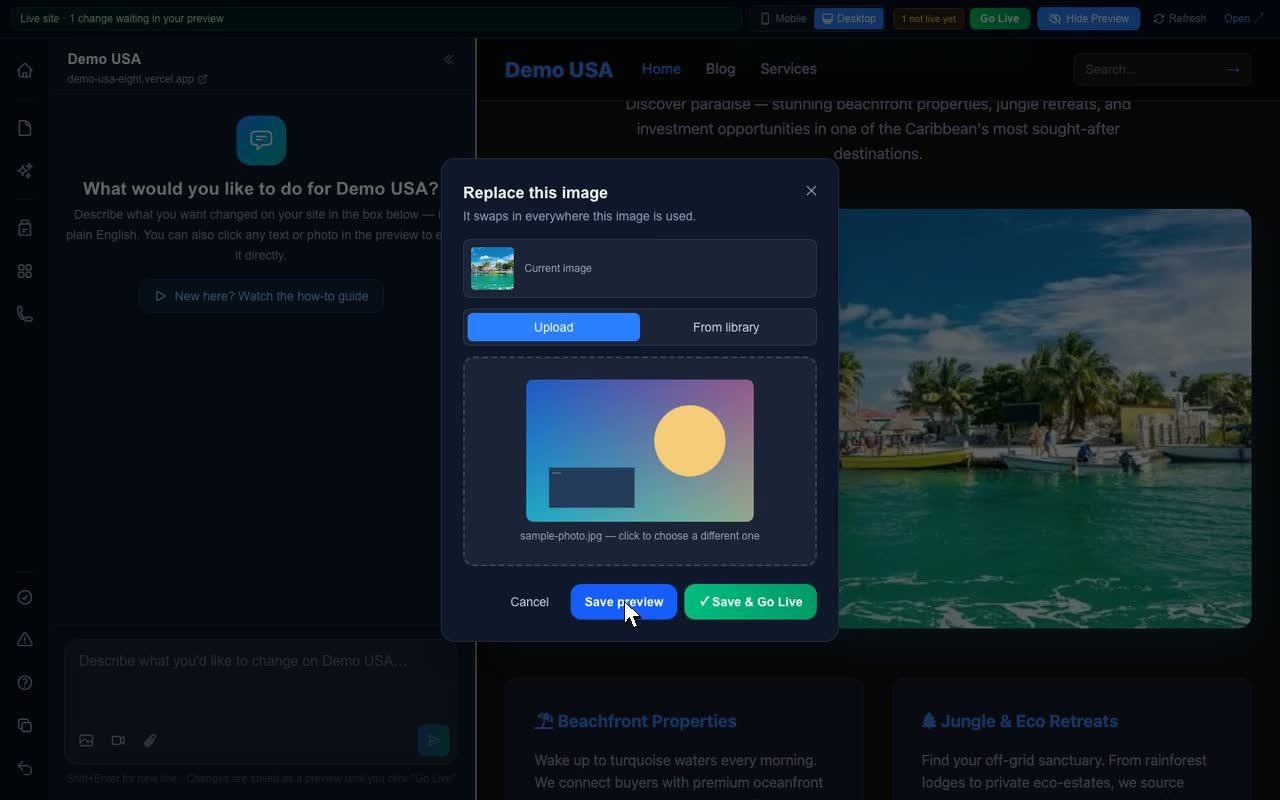
Upload or pick from the library
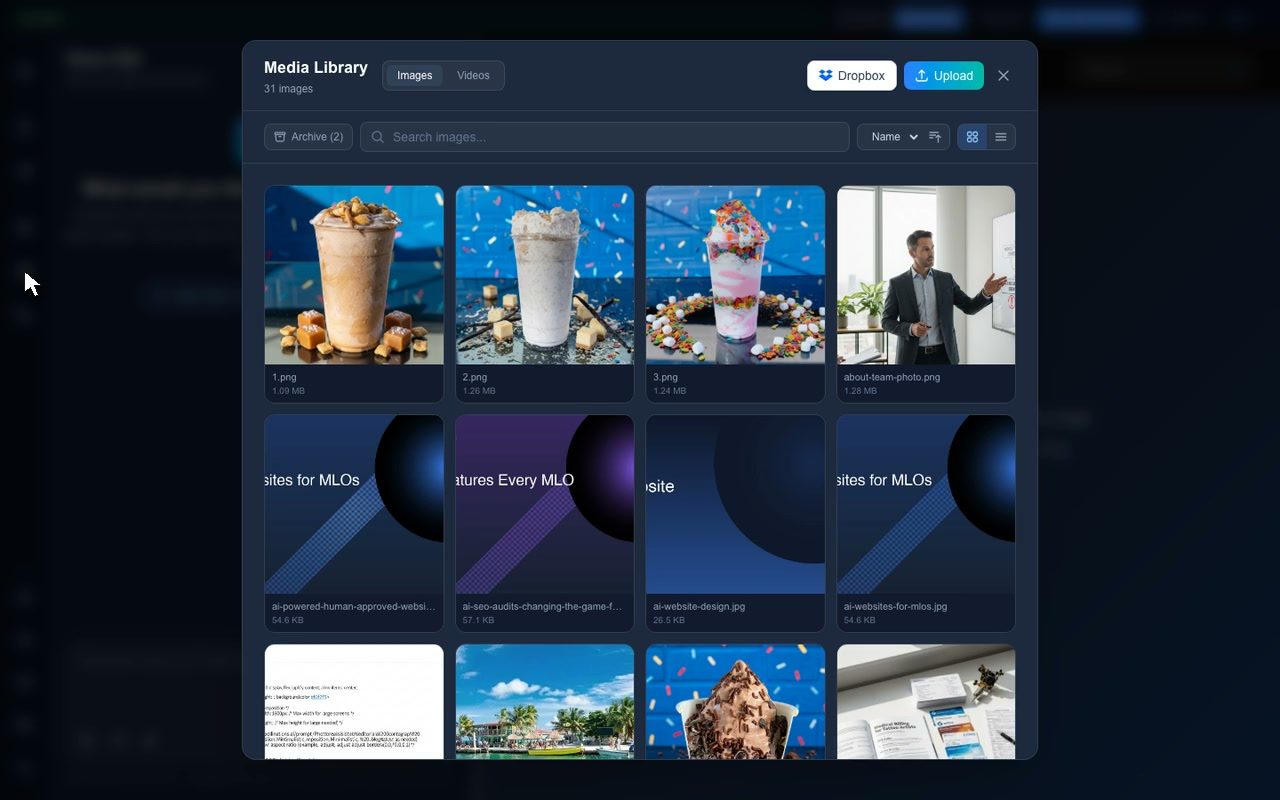
Two tabs: Upload a file from your computer, or From library to reuse any photo already on the site. Search the library by name.
Save preview, then Go Live
The page keeps its layout with the new photo. The old one is kept in the archive automatically, so a replace is never permanent.
Good to know
- Photos are resized and optimized automatically. Bring the full-size original, not a phone "preview" copy that will look soft on a big screen.
- Replacing keeps the file name, so every page that used the old photo shows the new one.
- Closing the dialog with a picture selected applies it to the preview. Cancel or Esc discards it.
- The live site still shows the old photo until you press Go Live. If it still looks old a minute later, reload: your browser remembered the old one.
When a photo needs the chat instead
- Adding a photo somewhere new. Attach it with the image button next to the message box, then say where: "put this above the pricing section on the Services page".
- Several at once. Upload them in the Media library, then ask the AI to place them by name: "use the photo called team-2026 on the About page".
- Videos and PDFs. Videos go to a fast player through the video button or the Videos tab. PDFs attach with the paperclip. Then say what to do with the file.
- A stretched or squished photo. Tell the chat: "the new photo on the About page looks stretched, fix its size".
Chat, click, or photo editor?
If it outlines blue, click it. If it is a photo, click it. Everything else, and anything that spans pages or creates something new, goes to the chat.
| You want to | Best tool | Why |
|---|---|---|
| Fix a typo or reword one sentence | Click to edit | Fastest. Click, type, click away. Saves to the preview by itself. |
| Change a price or a date | Click to edit | Same as above. If the price appears on several pages, chat with "everywhere". |
| Swap a picture, keep the layout | Photo editor | Click the photo. Upload or choose from the library. Frame stays identical. |
| Add a photo where there is none | Chat | Attach it in the chat and say where it goes. The AI writes the layout for it. |
| Change a button label or link | Chat | Buttons are protected from clicks so a click never breaks one. |
| Update the phone number, hours, or address | Chat | They repeat on every page. "Everywhere" updates header, footer, and contact page together. Or use Update contact info in the toolbar. |
| Add a section, FAQ, table, or calculator | Chat | New structure only the chat can build, matched to your site's style. |
| Create a new page | Chat or Pages | Pages, then New page, walks you through it and adds the menu link. Or just ask. |
| Write a blog post | Chat or AI blog writer | Give the topic and the points. Send once. Add your photos before Go Live. |
| Rename a menu item or footer link | Chat | Menus and footers are protected from clicks because they appear on every page. |
| Fix how something looks on phones | Chat | "On mobile, the pricing table is cut off on the right." It fixes phone layout without touching desktop. |
| Take back the last change | Undo or chat | Undo at the top of the chat, or say "put it back the way it was". |
Quiz yourself: tap a card to flip it
What you can change, what needs the chat, what is protected
Nothing here is a limitation of your site. The protections exist so a stray click can never break a menu, a form, or the editor's own connection to the site.
Change by clicking
Anything that outlines blue when you hover in the preview.
- Every headline and paragraph on every page
- List items, step text, card titles and card text
- Blog post bodies and blog card titles
- Service page heroes and body copy
- Any photo on a page, by clicking it
Change through the chat
Shared parts, structure, and anything that does not exist yet.
- Menu links and dropdowns
- Footer text, office hours, phone, address, email
- Buttons and their links, forms, the search box
- Colors, spacing, layout, mobile fixes, animations
- New sections, pages, blog posts, FAQs, calculators
- Page titles and descriptions for search engines
- Videos, PDFs, and photos placed somewhere new
Protected, and why
The editor refuses these on purpose.
- Clicking text inside menus, footers, buttons, and forms. They repeat everywhere or do something when clicked.
- Clicking logos in the header or footer. Use the chat.
- The security headers that let the editor preview your site. Even the chat refuses to break them.
- Publishing part of the preview. Go Live publishes everything, including a teammate's edits, and says so.
The left toolbar and the top bar
Each of these is a shortcut. Everything they do, the chat can also do if you describe it.


Ten short walkthroughs
Each clip loops. They play as you scroll to them and pause when you scroll away. Every topic also has its own page in the help center.
Start here
Chat, preview, Go Live. The whole model in one loop.
Editing text by clicking
Hover, click, type, Save.
Replacing a photo
Click the picture, choose a file, Save preview.
Going live
Read the counter, press Go Live, wait a minute.
Writing a blog post
Topic and points in the chat, post and card in the preview.
Pages
Site map and New page from the left toolbar.
Media library
Every photo and video in one place.
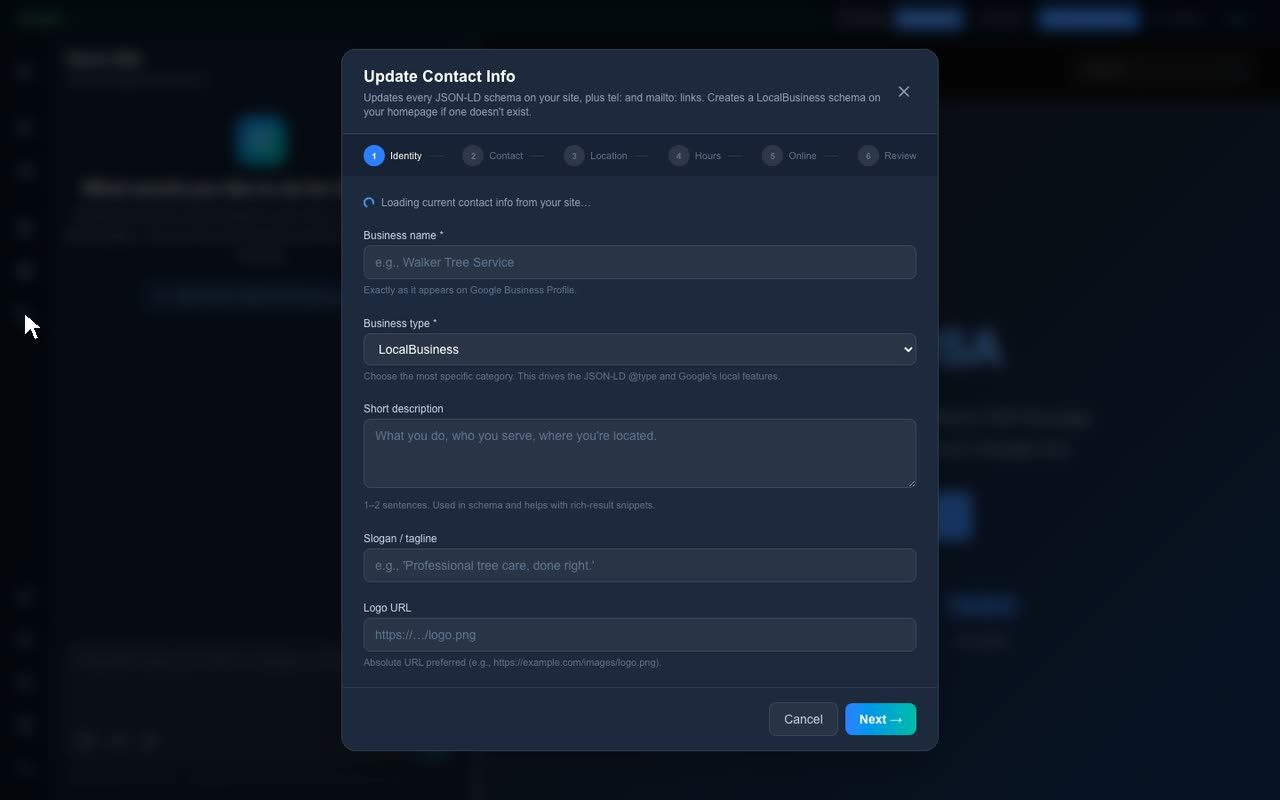
Updating contact info
Phone, hours, address, everywhere at once.
Mobile and desktop
Check the phone view before publishing.
Undo and version history
Take back the last change, or restore any publish.
A ten-minute tour of the editor
Sign in, choose your website, and follow this order. Each move shows one tool, and the order builds from the smallest change to the biggest. Prefer a sandbox? The same tour works on the Demo USA site.
Check the counter next to Go Live. If it says changes are waiting from an earlier session, either publish them or press Undo, so you start from "Live site". Switch the preview to Desktop.
Hover the intro under your Home headline until the blue outline appears. Click, retype it, click away. Watch the amber counter: 1 change not live yet. That is the whole safety model. Nothing is live yet.
Click a photo on the Home page. Choose Upload or From library, pick a picture, press Save preview. Same frame, new picture.
Type: On the Services page, change the heading to "Tools that do the marketing work for you". Notice the reply starts with the page it edited and ends with a Tip. Then type: Put it back the way it was.
Try Add a three-question FAQ under the intro on the Home page or Write a blog post about spring marketing ideas for a salon. Send it once. While it works, check Mobile view on another page.
Pages, then New page. Name it, give three key points, pick a hero image, keep "Add this page to the site navigation" on. It appears in your menu by itself.
Hover the counter to list the pages, press Go Live, and open the live site in a new tab a minute later. Then open Version history and see this publish saved, with Restore next to every earlier one.
Open Version history, restore the version from before the tour into the preview, and Go Live. Or, if you never published, press Undo until the counter reads "Live site". Remove a test post with the chat: Delete the blog post about spring marketing and its card.
Five situations, and what each one means
It is saved in the preview. Press Refresh at the top of the preview and look for the amber counter next to Go Live.
After a save the preview rebuilds for about a minute. Press Refresh.
Did you press Go Live? Then wait a minute and reload. The counter tells you if anything is still waiting.
Press Undo, then repeat the request with the page named: "on my Services page, ...".
That text is inside a menu, footer, button, or form. Ask the chat instead.
Report a bug in the left toolbar sends the team your exact situation. Use it freely.
Now go change something
Sign in, pick your website, and try the five moves. The preview is your sandbox.